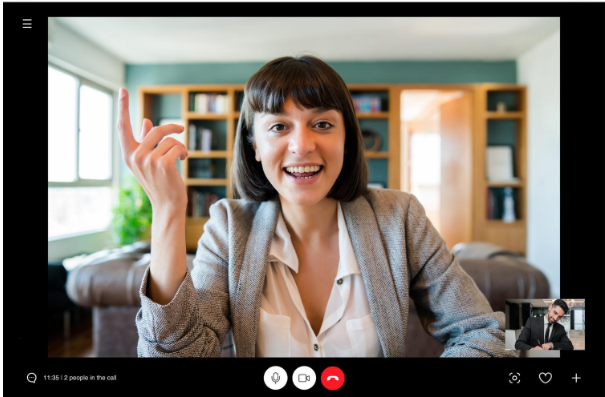
Zoom has become a go-to platform for remote meetings, online classes, webinars, and even virtual events. But what happens when you need to refer back to something that was said or shown during a session?
Knowing how to record a Zoom call on your laptop can save you time, reduce miscommunication, and improve productivity. Depending on the tools you use and the version of Zoom you’re working with, the experience (and the results) can differ significantly.
Why Recording Zoom Calls Matters?
Recording a Zoom meeting isn’t just about archiving the conversation. In both professional and educational settings, having access to a meeting recording can offer significant value.
Whether you’re working solo or collaborating with a team, being able to go back and rewatch a session can make a difference in how information is retained, shared, or used later on.
Preserving Important Information
Not everything can be remembered perfectly, especially in hour-long or multi-speaker meetings. Recording allows you to revisit key moments, extract accurate quotes, or review detailed instructions.
This is especially relevant for professionals in project-based work, legal consultations, and technical industries where precision matters.
Supporting Remote Work and Distributed Teams
When teams work across time zones, not everyone can attend live calls. A saved recording keeps projects aligned and reduces the need to repeat explanations. The ability to record on Zoom and save the output on your laptop becomes essential for asynchronous collaboration.
Enhancing Learning and Training
In online education, lectures and tutorials are rarely one-and-done events. Students benefit greatly from replaying lessons at their own pace.
Educators, too, use recordings to assess their teaching or to create reusable content. A simple screen capture can turn a one-time lesson into a permanent video asset.
Creating Reference Materials and Documentation
Recorded meetings often serve as informal documentation. Whether it’s a product demo, client feedback session, or strategic discussion, having a file you can refer to later makes reporting, writing summaries, or building tutorials much easier.
Zoom’s Built-In Recording Function: How It Works
Zoom includes native recording capabilities, but they aren’t the same for every user. The free version and premium version differ in several key ways, which affects what you can do with your recording.
In the free version, only the host (or someone they grant permission to) can record. The recording is stored locally, meaning it is saved directly to the PC or laptop being used. And it has a significant time limit.
The premium version of Zoom (including Pro, Business, and Enterprise plans) unlocks cloud recording. Recordings are stored in Zoom’s online system and can be accessed from anywhere.
Premium users also get features like admin controls, reporting, branding capabilities, whiteboarding, and some tool integrations.
How the actual recording happens?
Recording is initiated by pressing the familiar “Record” button on the meeting interface. The user can then choose between local and cloud recording (if on a paid plan). Once the meeting ends, Zoom processes the video and audio, then generates files in formats such as MP4 (video) and M4A (audio).
Want More Control? Use a Third-Party Screen Recorder
Relying on Zoom’s native recorder can be fine for casual users, but if you need flexibility, independence from host settings, or higher-quality output, installing a third-party screen capture tool, for example Movavi Screen Recorder, is often a smarter choice.
These programs allow you to record your screen regardless of your role in the meeting, and most include advanced options that Zoom lacks.
For example, you’re no longer dependent on being the meeting host or waiting for recording permission. You simply start your screen recorder and capture everything — video, audio, interactions, even the cursor if you choose.
Another major benefit is that these tools often offer editing capabilities. Instead of raw footage, you can trim irrelevant parts, add highlights or captions, and organize content before sharing. Especially helpful if you will use it externally, for example, in a tutorial or public presentation.
Professionals who record frequently (marketers, trainers, researchers, consultants, etc.) also benefit from the ability to schedule recordings, capture system sound alongside mic input, or overlay webcam footage for added context. These are not things the free version of Zoom offers.
Other Purposes Screen Recorders Can Serve
Beyond recording Zoom calls, third-party recording tools prove valuable across a wide range of use cases.
- content creators regularly use them to record software walkthroughs or YouTube tutorials.
- educators can create structured video lessons for asynchronous learning environments.
- business owners may use them for onboarding materials, internal communications, or performance reviews.
- developers and QA specialists often rely on screen capture to record bugs or demonstrate software behavior.
- designers may document user interface changes
- remote teams can record sprint demos or retrospectives for stakeholders.
This visual feedback is far clearer than written explanations and speeds up the troubleshooting process.
These tools also support anyone building a knowledge base. You can provide rich video instructions that show users how to do something. When used strategically, screen recorders become a core component of modern digital communication.
FAQs
Can I record a Zoom meeting if I’m not the host?
By default, only the host can record a Zoom meeting. However, the host can give permission to participants manually. If you’re on a free version without host access, you won’t be able to use Zoom’s built-in recorder.
Where does Zoom save recordings on my computer?
Zoom saves local recordings to the default folder set in your app settings. Typically, that’s the “Zoom” folder in your “Documents” directory. You can check or change this under Settings > Recording in the Zoom desktop app.
What’s the difference between cloud and local recording on Zoom?
Local recording saves the meeting directly to your PC or laptop. Cloud recording stores your file to Zoom’s server. It’s more flexible but requires a paid plan.
Can I use a third-party screen recorder to capture Zoom calls?
Yes! If you want more control or features, a third-party screen recording tool is a great alternative. It allows you to record Zoom sessions freely, capture both audio and video, and even edit the file afterward.
Conclusion
Knowing how to record a Zoom call on your laptop can dramatically improve the way you retain, share, and work with digital information. Zoom’s built-in recording tool is a convenient starting point, especially if you’re the host, but it comes with limitations.
Third-party screen capture tools remove dependency on host permissions, offer broader file management options, and serve a variety of use cases far beyond just capturing a meeting. With the right setup, recording on Zoom becomes not just a backup — but a strategic resource.